How to download a Twitch Clip as an MP4
Paste the link to a published Twitch Clip and choose a resolution, orientation, and video codec from the versions available.
Open Twitch Clips on ClipportSteps to follow
Copy the video link
Open the published clip. Copy the share link from clips.twitch.tv or the channel page address that contains /clip/.
Example link formatclips.twitch.tv/ClipNamePaste and check the link
Open the Twitch Clips downloader, paste the link into Video link, and select Find video.
Save the video
Select an available MP4 and click Download. Choose H.264 for broad playback support. If you need a portrait clip, check the orientation in the list.
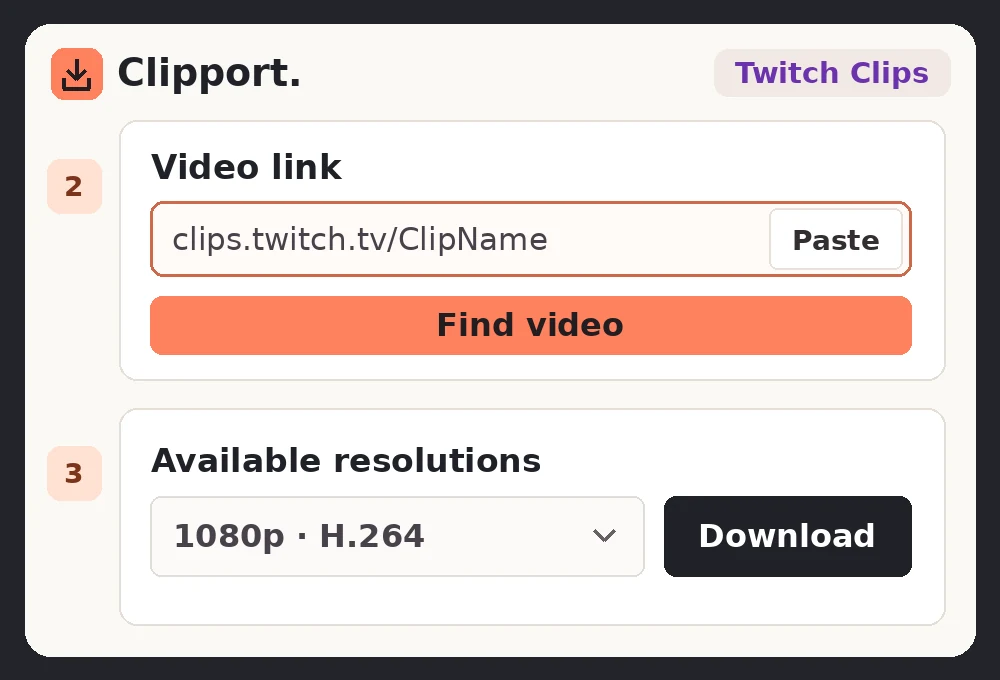
Choose H.264 or HEVC for a Twitch Clip
H.264 is the better first choice if you want the MP4 to play on a range of phones and computers. Prefer a vertical version for a portrait edit when available. An older player may handle the audio from a HEVC file while failing to display the video track.
Frequently asked questions
Are Twitch livestreams and full VODs supported here?
This tool handles individual published Clips. Use the share link from the clip page instead of a channel, a livestream, or a full broadcast.
Why does the 1440p file have sound without a picture?
The 1440p version can use HEVC. If your player cannot show HEVC, use an available H.264 file. Resolutions and codecs vary by clip.