How to download a vertical Twitch Clip
Find portrait MP4 versions of a published Twitch Clip and check playback before editing.
Open Twitch Clips on ClipportStart from the published clip
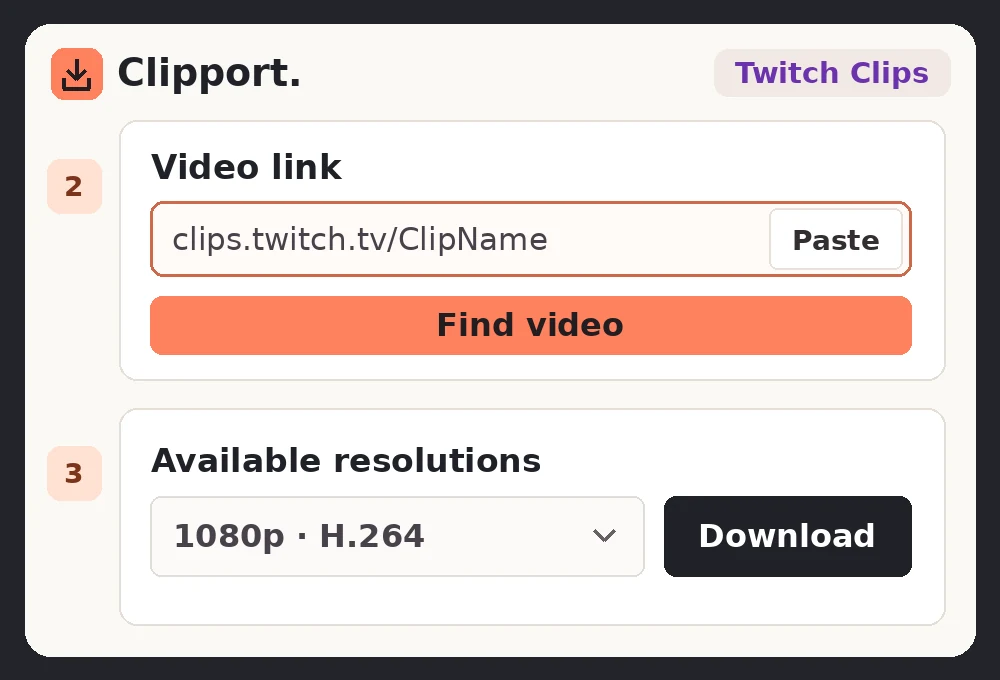
Copy the clip’s share link from clips.twitch.tv or the address that contains /clip/. A channel page or a complete VOD is a different kind of link. Paste the specific clip link into Clipport.
Choose Portrait in the result
Read the orientation along with the resolution and codec. Pick Portrait when a vertical version exists. A clip can offer several landscape versions and no portrait rendition. If you own the content, you can crop a landscape version in your editor as a separate task.
Check codec support for editing
A portrait version can use HEVC even when an H.264 landscape version is available. Play the downloaded portrait MP4 and verify your editor can import its video and audio before starting your edit.